Find out what the stroke is doing
A stylus can feel unpredictable in several different ways. A light touch might leave no mark, a small increase in force might produce a suddenly heavy line, or the brush might reach its full width long before you press firmly. Before changing settings, identify which of these happens in your normal drawing motion. Pressure adjustments are easier to judge when you have a specific problem to solve.
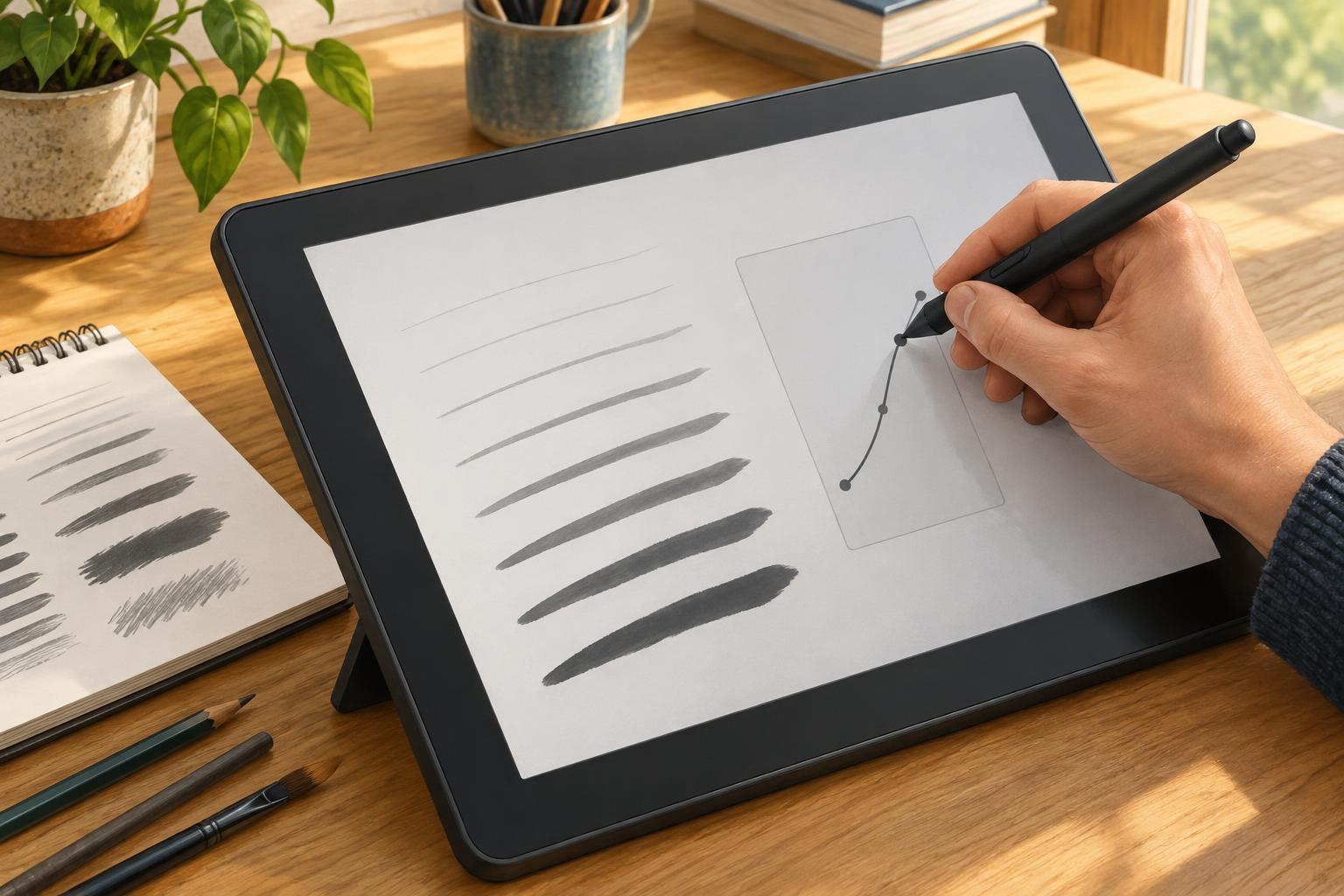
Open a blank canvas and choose a simple, pressure-sensitive round brush. Draw several lines slowly, going from a light touch to your usual firm pressure and back again. Then draw a row of small circles and a few quick flicks. Repeat each mark twice. If the results vary greatly between repetitions, note whether the difference occurs at the start of the stroke, at maximum thickness, or during the taper. Keep this test canvas open so you can compare it with later attempts.
Check where pressure is controlled
Pressure response may be affected by the stylus hardware, a tablet or device setting, the drawing app, and the selected brush. Not every setup offers controls at every level. Some tablets have a driver with a pressure curve; others rely mainly on settings inside the drawing app. Look for labels such as pen pressure, tip feel, pressure curve, or input response, without assuming that the same label works identically in every program.
Check that the app recognizes pressure before fine-tuning it. Make a stroke with a brush that clearly changes size or opacity with pressure. If every mark looks identical, try another pressure-sensitive brush and check that the stylus is connected and selected as the input device. Also inspect the brush settings: a brush with a high minimum size or limited size variation can appear unresponsive even when pressure input is working. If available, use a built-in pressure test area to see whether the device detects a gradual change in force.
Adjust the curve one change at a time
A pressure curve translates the force you apply into the value the software uses. A more sensitive setting generally produces a stronger response with a lighter touch. A firmer setting asks you to press harder for the same effect. If thin lines are difficult because the brush becomes heavy too quickly, try a slightly firmer response. If you must press uncomfortably hard to see a wider mark, try a more sensitive response. The goal is not to use the entire pressure range at all costs; it is to put useful variation within the range of force you naturally use.
Move the control only a little, then repeat the lines, circles, and flicks on your test canvas. Make several strokes before deciding whether the change helped. A single attractive line can be accidental, while repeated marks show whether the setting is dependable. If your software allows you to shape the curve at multiple points, pay particular attention to the low-pressure end for fine-line starts and the middle for everyday line-weight changes. Avoid making a dramatic bend unless a gentler adjustment cannot solve the problem.
If you draw with both a tablet driver and an app that offers pressure controls, start by adjusting one layer and leaving the other at its default. Changing both at once makes it difficult to tell which setting improved the result. Once the basic response feels comfortable, save the setting or record its position so you can return to it.
Separate pressure from brush behavior
Even a well-tuned stylus will feel different across brushes. Size, opacity, flow, and texture can each respond to pressure, sometimes at the same time. A textured brush may produce broken light strokes by design; an inking brush with a large minimum width may resist fine tapers. Test your general pressure setting with a straightforward brush first, then adjust individual brushes for particular tasks.
For comic line art, you might want a brush that stays narrow under a light touch but widens smoothly for contours. For soft shading, gradual opacity changes may matter more than dramatic shifts in size. If strokes wobble, inspect smoothing or stabilization separately: it can change how a line follows your hand, but it does not fix a pressure curve that jumps abruptly from light to heavy. Keeping these controls distinct makes the cause of a problem easier to find.
Build a repeatable drawing check
After adjusting the settings, test them in a small drawing rather than only in isolated lines. Ink a simple object with an outer contour, a few interior details, and short tapered marks. Then shade a basic form with overlapping strokes. Watch for places where you compensate by gripping harder, pressing harder than is comfortable, or repeatedly undoing a line because its width surprises you. Those are useful signals that the response still needs attention.
Keep a small reference canvas with your test marks and note the brush and pressure setting used. Recheck it after an app update, a device change, or a significant brush edit. Pressure settings are personal and may differ by task, so there is no need to chase a supposedly perfect curve. A good setup lets you make your intended thin, medium, and heavy marks consistently without fighting the tool.