Start with the kind of image you want to make
The choice between raster and vector is less about which app is more powerful and more about how you like to build an image. A raster canvas is made of pixels. When you draw, paint or erase, you change the appearance of those pixels. A vector canvas is built primarily from paths and shapes defined by points and curves. You can adjust a path after drawing it without repainting the whole line.
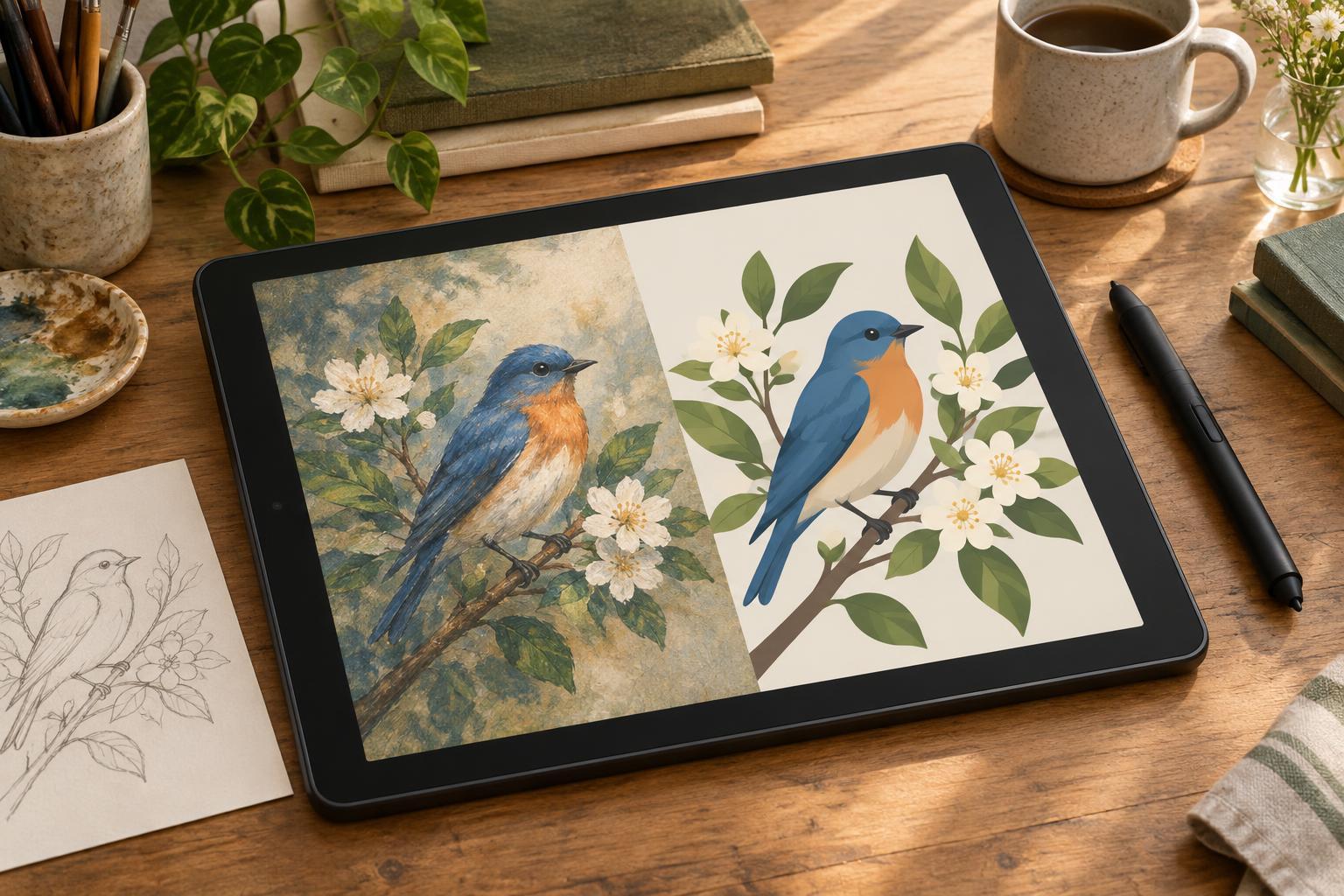
Neither method determines your style. Both can produce polished illustrations, simple cartoons or intricate compositions. The useful question is what you expect to change while working. If you enjoy building an image through brush marks and gradual correction, raster may feel natural. If you often reshape silhouettes, recolor separate objects or resize artwork for different uses, vector tools may save effort.
What raster does well
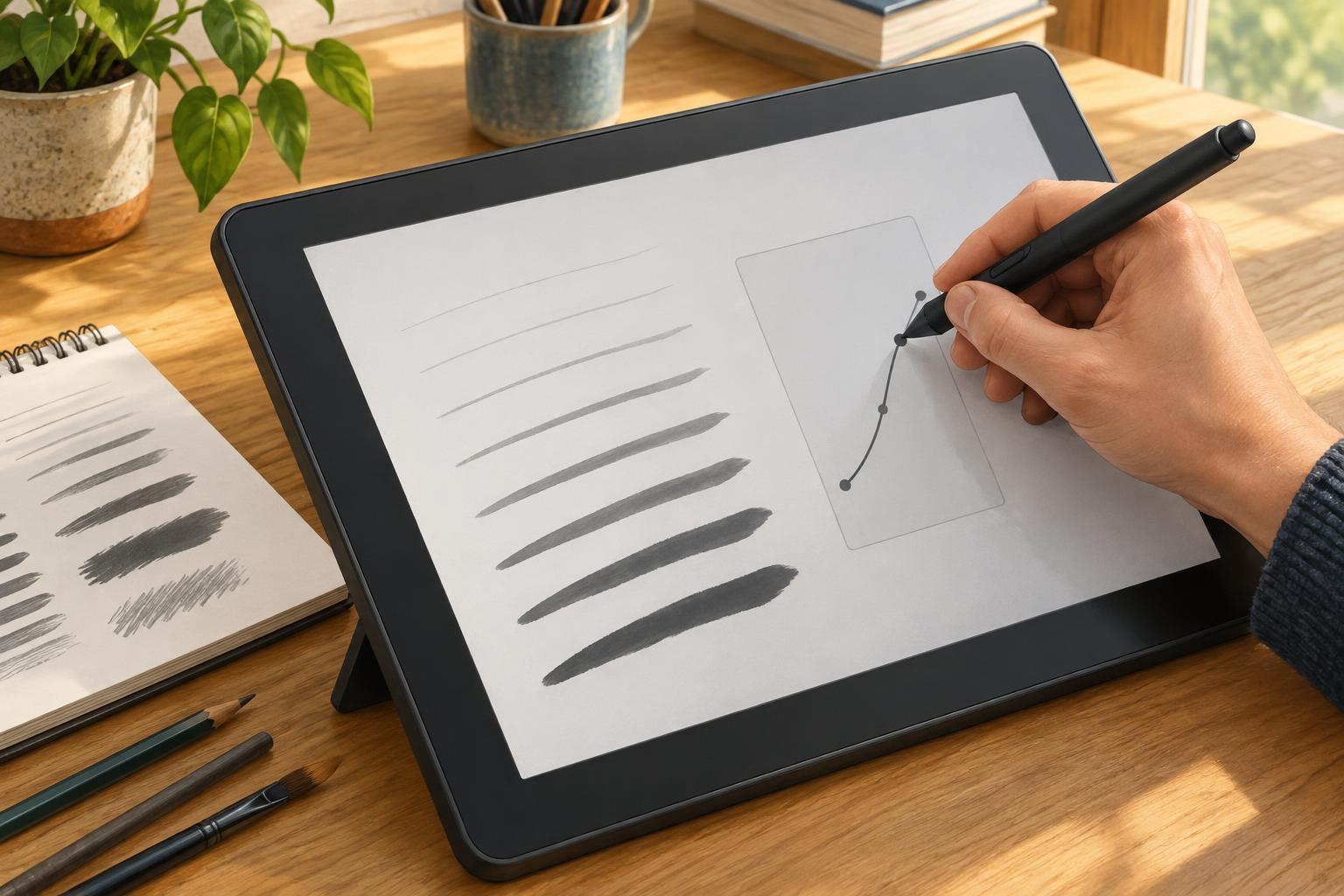
Raster apps are a comfortable fit for sketching, painting and textured linework. Brushes can mimic dry pencil, soft washes, ink buildup or grain, and you can blend colors directly on the canvas. For a comic page, this can make rough layouts, expressive inking and atmospheric backgrounds feel like parts of the same drawing process. Layers let you separate a sketch, inks and color while keeping the freedom to work into each one.
The main constraint is resolution. A small raster drawing may look soft or pixelated if you enlarge it substantially. Begin with a canvas sized for your likely final use, allowing room for cropping, and check any print specifications before you start a detailed piece. Large canvases and many layers can also strain a device. Working bigger is useful only when your hardware and file-management habits can support it.
What vector does well
Vector apps shine when an illustration needs clean edges and flexible shapes. You can move anchor points to refine a character’s profile, change a fill color across a set of objects or scale a motif without the same pixel-resolution concern. This can suit icons, flat-color editorial illustrations, diagrams and repeatable visual elements. It is also handy when one drawing must appear at several sizes.
That flexibility comes with a different way of thinking. A path is an object to shape and organize, rather than a mark laid down once. Some artists find this precise and satisfying; others find it interrupts the rhythm of drawing. Vector brushes and effects can suggest texture, but if irregular marks and subtle color mixing are central to your work, check how easily a particular app produces them before committing to a project.
Consider the whole workflow, not just the canvas
Imagine a short comic with loose pencil thumbnails, lively ink lines, flat character colors and speech balloons. You might make the artwork in a raster app, then add editable lettering in a vector-capable layout tool. Or you might draw clean characters as vector shapes and add raster grain over them. A mixed workflow is sensible when each tool has a clear job; it becomes cumbersome when every small revision requires moving files back and forth.
Before choosing an app, inspect the parts of the project that must remain editable. Will you need to revise text, reuse character poses, hand off layered files or export transparent artwork? Check which file types an app can open and export, and whether those exports preserve the elements you care about. A flattened image may look correct while losing editable paths, text or layers. Keep an editable working copy alongside any files prepared for sharing.
Run a small test before committing
Try making the same simple illustration in one raster app and one vector app: a character holding an object against a two-color background. Give yourself a limited session in each. Draw the pose, change the character’s expression, recolor the background and reduce the image to a small display size. Notice which edits feel direct and which require workarounds. The goal is not to produce two finished pieces; it is to expose the friction in each process.
Then match the result to your typical work. Choose raster as a starting point if brush feel, texture and painting are the parts you most want to protect. Choose vector if adjustable forms, crisp repetition and resizing matter more. If your work asks for both, start in the tool that handles the hardest part of the illustration and add the other only when it solves a specific problem. A dependable workflow is the one that makes revision easier without pulling you away from the drawing.