Choose the tool that suits the artwork
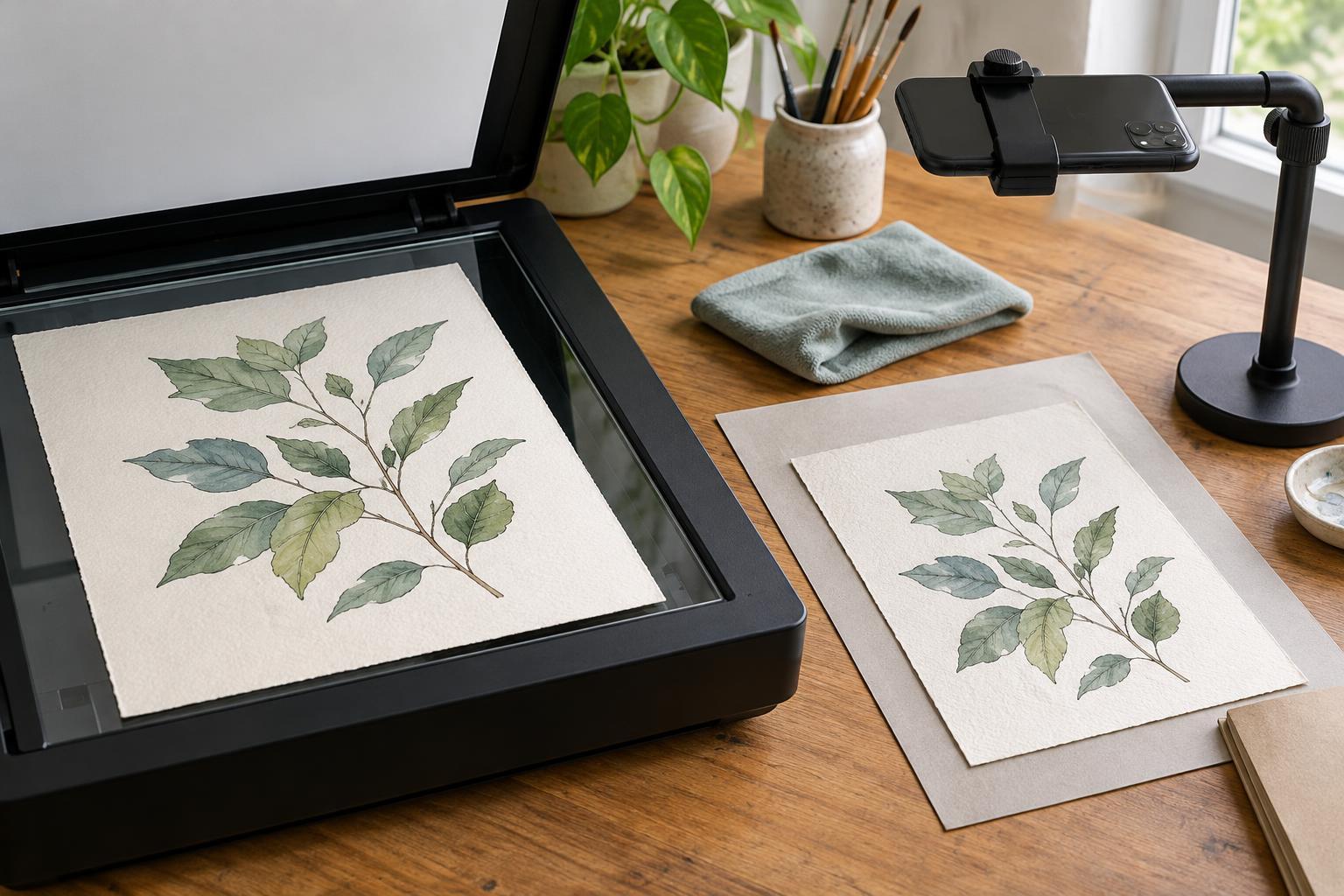
A flatbed scanner is a strong choice for artwork that fits comfortably on its glass: ink drawings, loose sketches, watercolor on relatively flat paper, and comic pages without bulky additions. Its fixed position makes it easier to keep lines straight and lighting even. It is especially useful when you need consistent images of several pieces made on similar paper.
A phone camera is more flexible. It can capture work that is too large for a scanner, bound inside a sketchbook, or built up with collage or textured paint. It also lets you control the direction of the light, which can help reveal or reduce surface texture. That flexibility comes with more setup: a slight camera tilt, uneven light, or a shadow from your hand can change the result.
Neither tool automatically produces a faithful image. Start by deciding what matters most: crisp lines for reproduction, visible texture for a process post, or a quick record of a sketch. The intended use will guide both the capture method and the amount of editing afterward.
Prepare the artwork before you capture it
Give the piece time to dry, then remove loose dust or eraser crumbs gently. Check for pencil marks you want to keep; cleanup is easier when you know which irregularities are part of the drawing. If the paper curls, let it rest flat when possible rather than forcing a fragile piece against a surface.
For a scan, clean the scanner glass and inspect it for streaks. Place the art face down without pressing on raised or delicate materials. A scanner lid may not close over thick work, and trying to flatten it can damage the original. For a photograph, set the piece on a stable, plain surface. If you need to hold down the corners, keep any weights outside the area you plan to crop.
Before capturing a full batch, make one test image. Look at the corners, pale areas, and darkest marks. A quick inspection can reveal a problem that would otherwise appear on every file.
Get a clean scan
Use a color scan when the paper tone, ink color, or subtle washes matter, even if the drawing looks mostly black and white. For line art intended for print or substantial resizing, a higher resolution gives you more room to work; for simple screen sharing, you may need less. Check the pixel dimensions of the result rather than relying on a resolution setting alone.
Position the artwork squarely on the glass, leaving a little space around its edges. Scan a small test area if your software allows it, and inspect fine lines and light tones before saving the full image. Automatic contrast or document-cleanup settings can make faint pencil work disappear or turn textured paper into patchy white, so compare the preview with the original.
If the piece is larger than the scanner bed, overlapping scans can sometimes be joined later. Keep the settings the same for each pass and include generous overlap. For a highly textured or delicate oversized piece, photographing it may be simpler and safer.
Make a phone photograph look intentional
Place the artwork where light falls evenly across it. Soft daylight from a window or diffused lamps can work well; avoid direct glare and mixed lighting that gives one side of the paper a different color. Move the lights or the artwork before trying to fix a bright reflection in editing.
Hold the phone parallel to the artwork and aim at its center. If possible, support the phone on a stand so it stays steady and level. Leave a border around the piece for cropping, tap to focus on the art, and check that highlights are not washed out. A timer can help prevent movement when you press the shutter.
Photograph the piece more than once, then zoom in on each image. Inspect the edges for distortion and the details for blur. Perspective correction can straighten a mildly tilted image, but it may stretch parts of the drawing; a square, sharp capture is a better starting point.
Edit lightly and keep a useful master file
Start by rotating and cropping, then adjust brightness and color while comparing the file with the artwork under neutral light. Aim for paper that looks like the paper you used, not necessarily pure white. Raise contrast cautiously: strong adjustments can erase pale marks, close gaps in ink lines, or flatten a wash.
Keep an unedited original and save a separate working copy. A lossless format such as PNG or TIFF can be useful for a master image, while a JPEG may be convenient for sharing a smaller finished copy. Give files descriptive names that distinguish the artwork and version, so you can return to the original capture if an edit goes too far.
Finally, view the image at both full size and the size at which someone will actually see it. A scan may have beautiful detail but need a cleaner crop; a phone photograph may look good at a glance yet show soft lines when enlarged. The best digital version preserves the marks that make the physical artwork worth seeing.