Start with the hand–eye difference
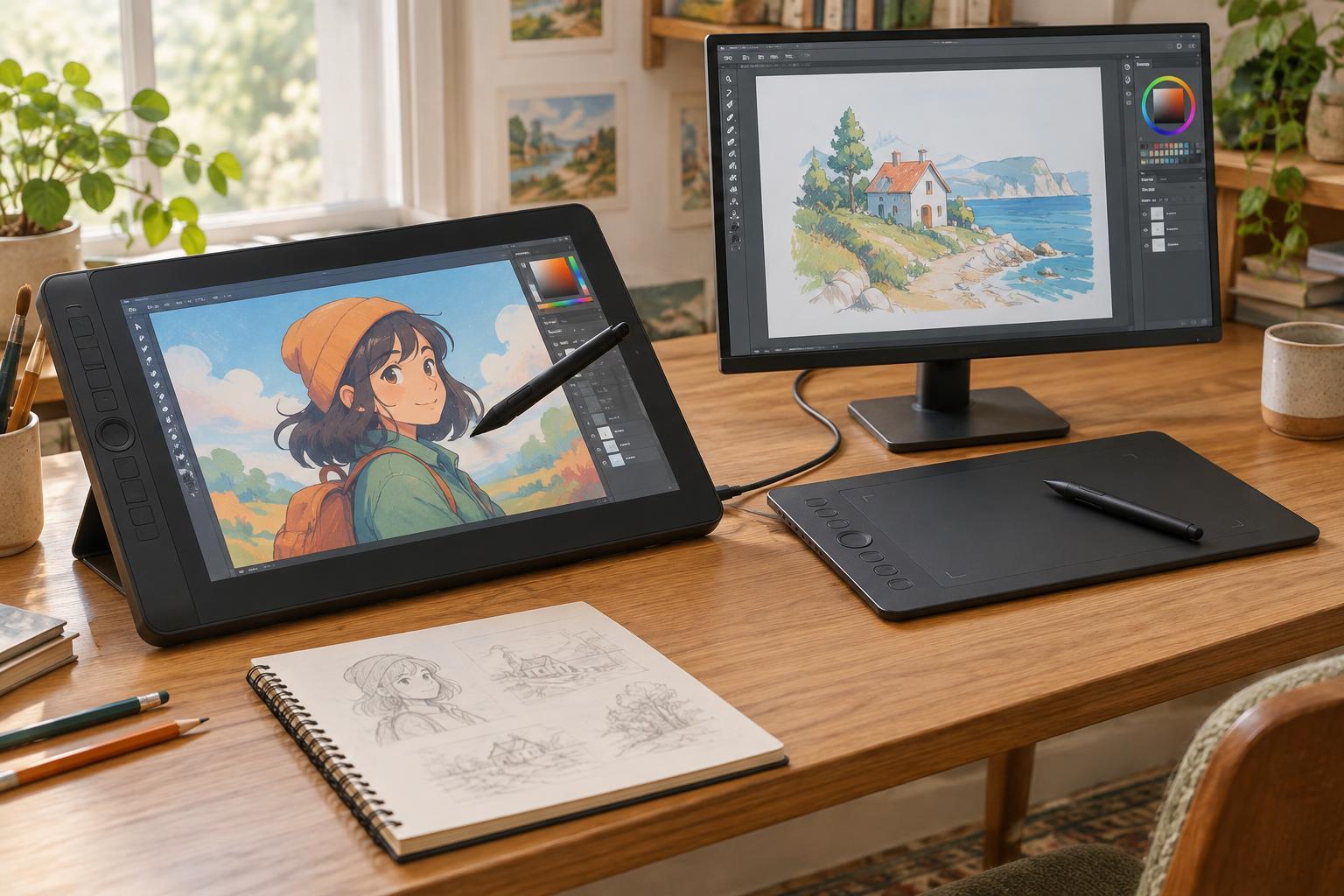
A pen tablet is a flat drawing surface without a built-in display. You move its stylus across the tablet while watching the cursor on a separate monitor. A screen tablet, often called a pen display, shows the artwork beneath the stylus. Both can support precise drawing; the main difference is where you look while your hand moves.
If you are used to drawing on paper, a screen tablet may feel easier to understand at first. You can place a mark directly where you see it. A pen tablet takes some adjustment because your hand and eyes work in different places, but that separation can become familiar with practice. Neither arrangement makes lines expressive on its own. Your software, brush settings and drawing habits still shape the result.
It helps to distinguish a pen display from a standalone tablet computer. Many pen displays need a computer to run drawing software, while a standalone device can run apps on its own. Check what a product requires before treating portability as a reason to buy it.
Match the surface to your workspace
A pen tablet usually takes less room on the desk and leaves your monitor free of your drawing hand. It can be useful if you work at a small table, use a large monitor or frequently move between writing, editing and drawing. Because you look at the monitor rather than down at the tablet, it may also be easier to arrange the screen at a comfortable viewing height.
A screen tablet puts the canvas under your pen, which can make sketching, inking and small corrections feel direct. The trade-off is its physical position. A display lying flat can invite you to lean over it; one set upright may make your drawing arm work harder. An adjustable stand or a change in desk height can help, but it is worth considering where the device, keyboard and reference images will all fit.
Think about a normal session rather than an ideal studio setup. If you draw in short bursts at a shared desk, a surface that is quick to put away may matter more than a larger active area. If you spend long sessions refining illustrations, the ability to position the screen and rest your arm may matter more than the first few minutes of drawing feel.
Compare useful features, not impressive numbers
Before comparing specifications, check the basics: whether the device works with your computer and drawing software, how it connects, and whether its active area fits your usual movements. A tiny surface may feel restrictive for broad strokes; an oversized one can require more arm travel than you want. Some pen tablets let you map a smaller portion of their surface to the monitor, so size is not an all-or-nothing decision.
For a screen tablet, consider display size, viewing angles, reflections and whether the screen looks comfortable to you at your usual working distance. The visible mark may appear slightly offset from the pen tip on some devices, especially when viewed at an angle. If you can test one, try slow curves and short strokes near the screen edges as well as in the center.
Shortcut buttons, touch controls and pen features are conveniences rather than substitutes for a comfortable setup. Ask whether you can reach the controls without interrupting your grip, and whether your most-used commands can be assigned in software. Also check what comes in the box: a stand, cables, adapter, spare nibs or pen holder can affect both setup and total cost.
Account for the whole workflow
A screen tablet often costs more than a comparable pen tablet and may bring extra cables, a stand and a display surface to keep clean. A pen tablet avoids another screen but depends on a separate monitor. Neither choice removes the need to check drivers, operating-system compatibility and connection options when you change computers.
Consider how you move between stages of a project. For loose thumbnails and composition studies, a direct screen may help you work intuitively, but a pen tablet can handle those tasks just as well after you learn its hand–eye mapping. For detailed cleanup, either device can provide control. Zooming, rotating the canvas and using appropriate brush stabilization often make more difference than switching hardware.
Wear and upkeep are modest but real considerations. Pen nibs and drawing surfaces can wear with use, and a screen may need more frequent cleaning if your hand rests on it. If you use a textured protector, remember that it can change how the pen feels and may increase nib wear. Choose accessories for a specific problem you have noticed, not because every digital setup seems to include them.
Make the choice with a short drawing test
If possible, try both formats using the same simple exercise: draw a page of straight lines, circles, loose figures and a small panel with lettering or fine details. Notice where your attention goes. Are you thinking about the image, or repeatedly searching for the cursor? Does your neck, shoulder or wrist feel awkward? A brief test cannot predict every long session, but it can reveal obvious friction.
Choose a pen tablet if desk space, a straightforward setup and lower initial cost are your priorities, and you are willing to learn to draw while looking at a monitor. Choose a screen tablet if drawing directly on the image is important to you and you have room to position it comfortably. If you already own one type, first try adjusting its placement, mapping or shortcuts. The best surface is the one that lets you return to drawing regularly without making the equipment the center of the process.