What a clipping mask does
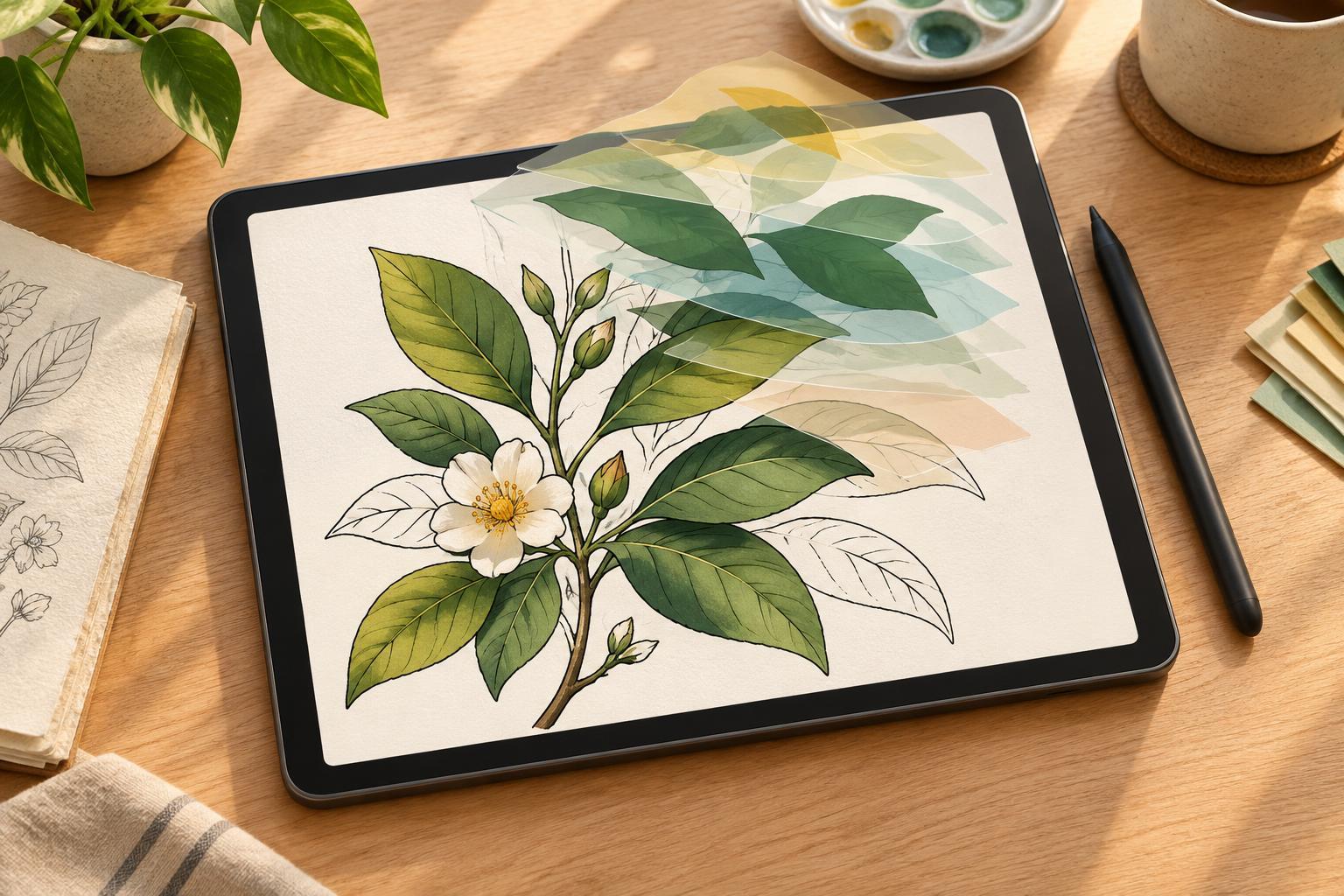
A clipping mask limits the visible content of one layer to the opaque pixels of another. Imagine painting a solid blue coat on a base layer, then clipping a new layer above it. Any shadow you paint on the clipped layer appears only where the coat already exists. You can move, erase, or recolor that shadow without changing the coat’s outline.
This makes clipping masks especially useful for coloring line art. The base layer establishes a clean silhouette; clipped layers hold shadows, highlights, patterns, and texture. The feature may have a different name or icon in your drawing app, but the principle is the same: an upper layer borrows the visible boundaries of a lower one. A clipping mask does not create those boundaries for you, so careful base shapes remain the most important part of the process.
Set up the line art and base colors
Start with the line art on its own layer above the colors. If the drawing has a solid white background, make that background transparent first so it does not cover your paint. Lock the line-art layer once you are happy with it. Some artists set line art to Multiply so white areas no longer obscure color, but transparent line art can often stay on Normal. Check the result at both working size and a smaller viewing size before committing to a setup.
Under the line art, create a layer for each major color shape, such as skin, hair, coat, and background objects. Fill each shape as a solid, opaque area. A selection tool can speed this up, but it may leave tiny unfilled spaces near strokes, especially where lines are textured or do not fully close. Inspect the edges and paint under the line slightly where needed. Keeping neighboring shapes on separate layers makes later clipping and recoloring more predictable.
Name layers by their purpose rather than by the order in which you made them. “Coat base” and “Coat shadows” are easier to find than “Layer 17” and “Layer 18.” If the drawing is simple, you can combine related base shapes, but separate any areas that are likely to need independent adjustments.
Build shadows, highlights, and texture
Select a base shape and add a new layer directly above it. Turn that new layer into a clipping mask. Paint a test stroke that crosses the base shape’s edge: the stroke should disappear outside the shape. If it does not, check which layer the mask is clipped to and whether the base contains opaque pixels. Once the relationship is working, use the clipped layer for a first pass of shadows.
Work from broad changes to small ones. A single shadow shape can establish the direction of light more clearly than many scattered dark marks. Add highlights on a separate clipped layer if you want to adjust their color or strength independently. Texture can have its own clipped layer too, so you can soften or remove it without repainting the underlying color.
Clipping is also useful for trying alternatives. Paint a stripe, fabric pattern, or warm reflected color on a new clipped layer, then hide it to compare versions. You do not need a separate layer for every brushstroke, though. Group marks that serve the same purpose, and merge layers only when you are comfortable losing the ability to edit them separately.
Fix edges that still look messy
A clipping mask keeps paint within the base shape, but it cannot fix an inaccurate base. If a highlight stops too early, a shadow looks jagged, or color leaks beyond the intended silhouette, inspect the base layer first. Extend or trim its edge with a brush or eraser, then check the clipped layers again. Changes to the base boundary will affect everything clipped to it.
Pale halos around line art often come from color fills that stop just short of an antialiased line. Try extending the base color beneath the line rather than aligning it exactly with the line’s visible edge. At corners or narrow gaps, zoom in to repair the fill, then zoom out to judge whether the correction actually improves the image. Excessive cleanup at high magnification can consume time without changing what a reader sees.
If a textured brush produces rough edges, keep the base silhouette solid and put the texture on a clipped layer. This preserves the expressive surface while maintaining a dependable outer edge. Where you want a shadow or highlight to extend beyond the silhouette, such as a rim of light, use an ordinary layer rather than forcing it into the clipping stack.
Keep the workflow flexible
Before adding detail, pause and check whether each shape reads clearly without the line art. Temporarily hiding the lines can reveal missing fills or ambiguous overlaps. Turning off the clipped shading layers can show whether the base colors are strong enough to support the illustration on their own.
Clipping masks work best as a way to separate decisions: the base controls where an object is, while the clipped layers control how it looks. That separation lets you revise a color, soften a shadow, or test a pattern without rebuilding the whole image. Start with only the layers you need, keep the base shapes clean, and add complexity when it helps the drawing.